Get started
Get started with Bryti
This guide walks you through your first steps, from creating an account to getting started with your first week.When you use Bryti for the first time, it takes a few minutes to get everything set up before it can start planning for you.Start by creating an account and setting up your household. Then, answer four quick questions. After that, Bryti will organise your week for you.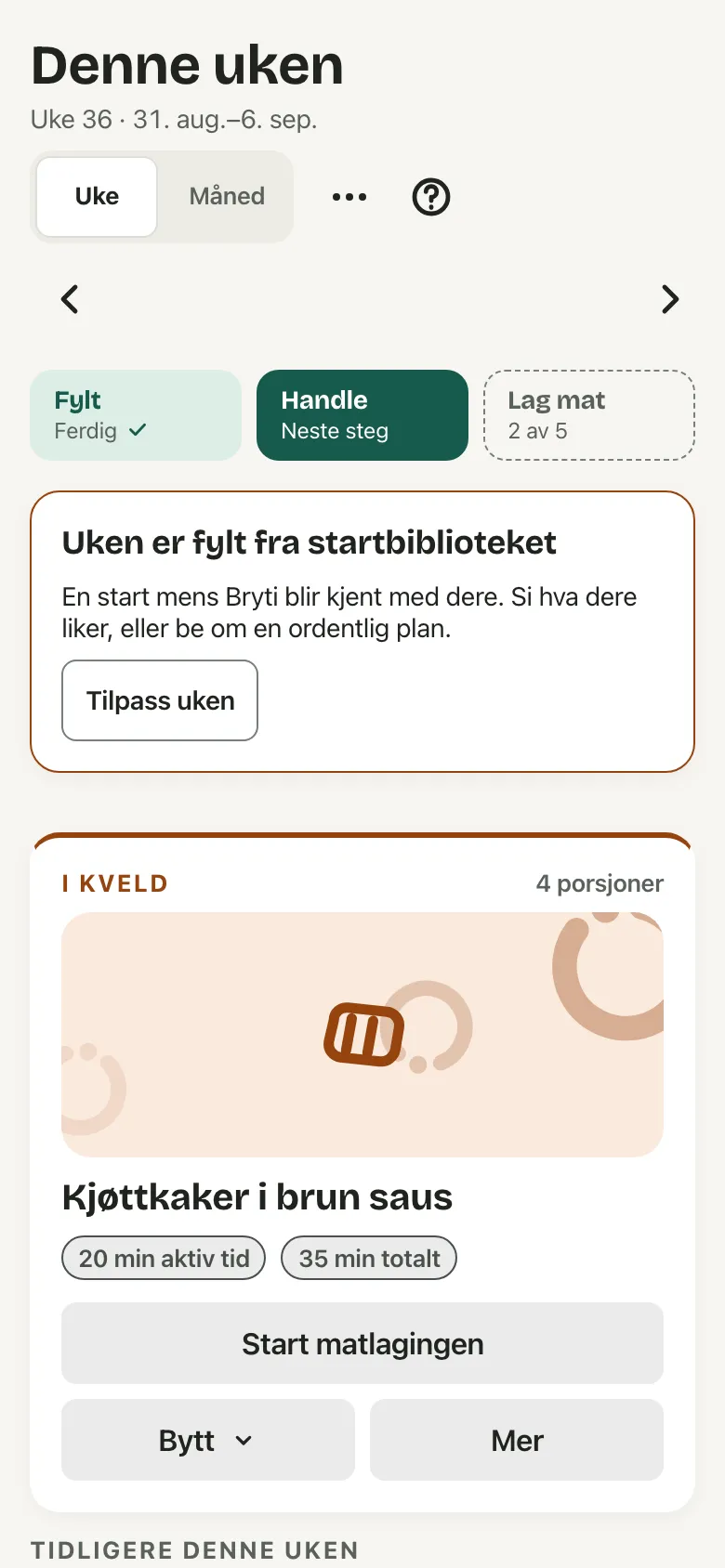
Account and household
- Tap Create account and enter your email, password, and name. If you’re on the web, you can sign up with Google or Apple. On iPhone, Apple sign-in is also available.
- Check your email for a confirmation link and open it to verify your address. If you don’t see the email, you can request a new one after five minutes.
- Select Create household, then enter a name and choose a language for your household.
- If you have an invitation, paste the link or code and tap Join the household. You’ll join their household, which is already ready to use.
NoteIf the front page shows a waiting list, leave your email and you’ll get a code when it’s your turn. An invitation works once and lasts for seven days.
NoteIf you use Bryti in your phone’s browser, it offers you the app once after you sign in. Tap Continue on the web to stay on the web.
The setup
When you create a new household, you’ll go straight to the setup. Bryti will guide you through four simple steps, and it’s free. If you skip it, Home will remind you until you finish.- The pantry: Take photos of your fridge, freezer, and cupboards. Bryti will process them in the background while you continue with the other steps.
- The people: Tell Bryti who lives with you and when you usually have dinner. Adding the year of birth is optional. If you leave it out, Bryti will plan for an adult.
- Allergies: Share any allergies or dietary preferences for each person, such as vegetarian, gluten-free, or no pork.
- House rules: Set your house rules. You can pick options like “Fish twice a week,” or write your own sentence and tap Suggest rules to see which rules Bryti recognises.
- Leftovers have their own card, since Bryti plans a leftovers night about every third day. If Bryti doesn’t recognise something as a rule, it will appear below the cards. Rules you’ve already set are marked as done.
Worth knowingYou can skip the setup by choosing I'll look around first and return to it later. Only the people step requires an answer, and you need to add at least one person.
The first week
Open the Week section. Every new household receives a free starter week with dishes from the starter library.Tap Tailor the week when you want the week to match your rules and your food. This is the first time credits are used.Home shows what’s next
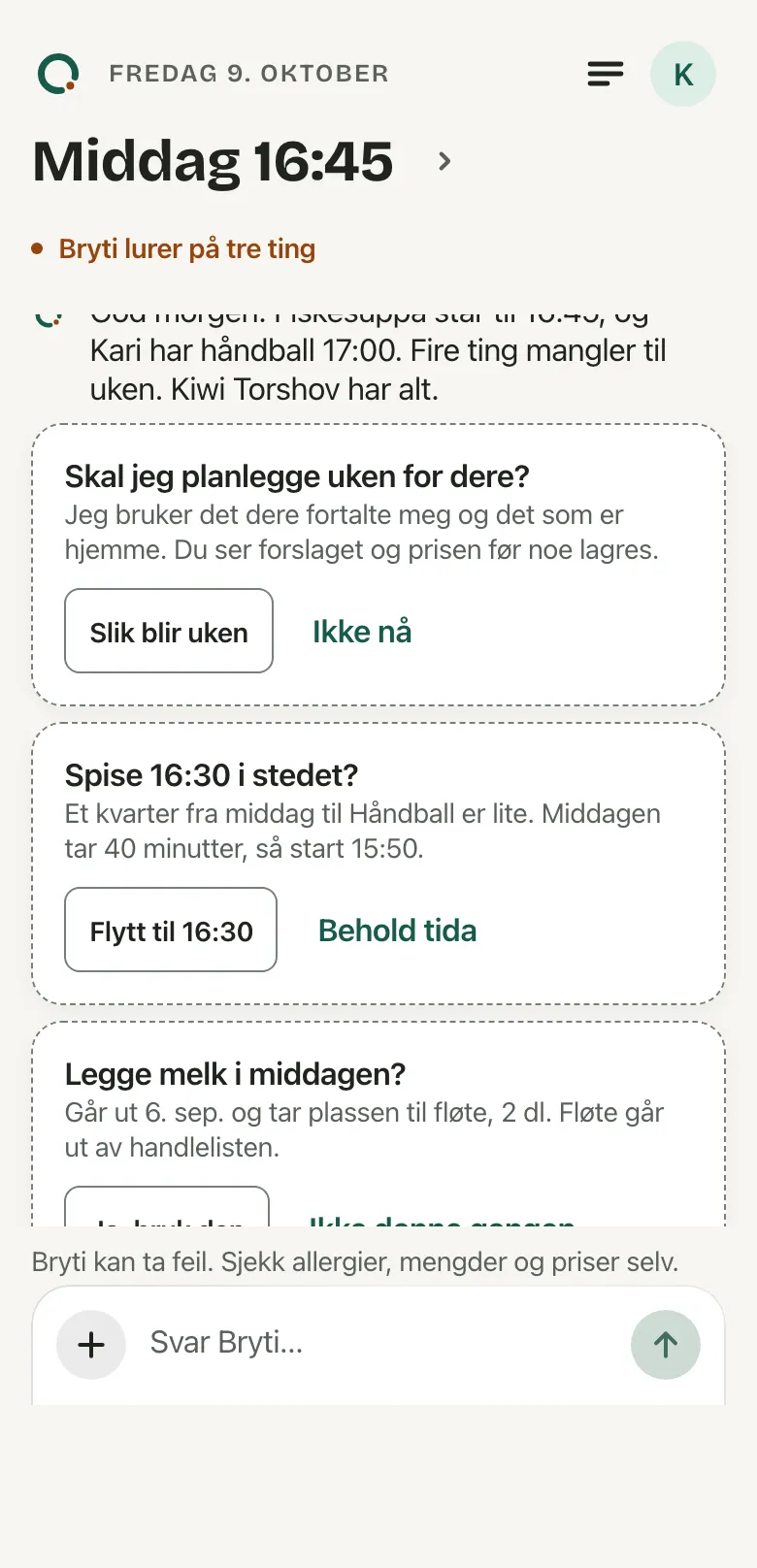
In your first week, the morning message on Home will show a card with your next step. On the first day, Bryti will ask if it should plan the week for you.After that, the card will direct you to the shopping list. Once your receipt is processed, Bryti suggests swapping a dinner.The card will only ask you to do one thing at a time. If you choose Not now, it will wait two days before asking again. After two weeks, Home will stop mentioning it.Go to Week
Opens in the app