Plan the week
Swap a dinner
Here’s what to do if tonight’s dinner isn’t right for you, and how to undo it.On the Week page, each day appears as a card showing the dish, cooking time, portions, shopping needs, and who’s home. The small Swap button with an arrow lets you see other options for that day. You’ll also find this button on tonight’s card on the Home page.When the card is open, the arrow turns and the button changes to Keep it.If someone at the table has a different meal than the main dish, their initial appears in the row. When you open the day, each person has their own line. The heading above them opens all the tips, showing the reasons for each one.See the advice in the recipe takes you to the recipe for that day, with the tips under the steps.If you tap a person, their softer tips are shown only as a count for that day, including in the recipe. Tips about safety or allergies always stay next to the step.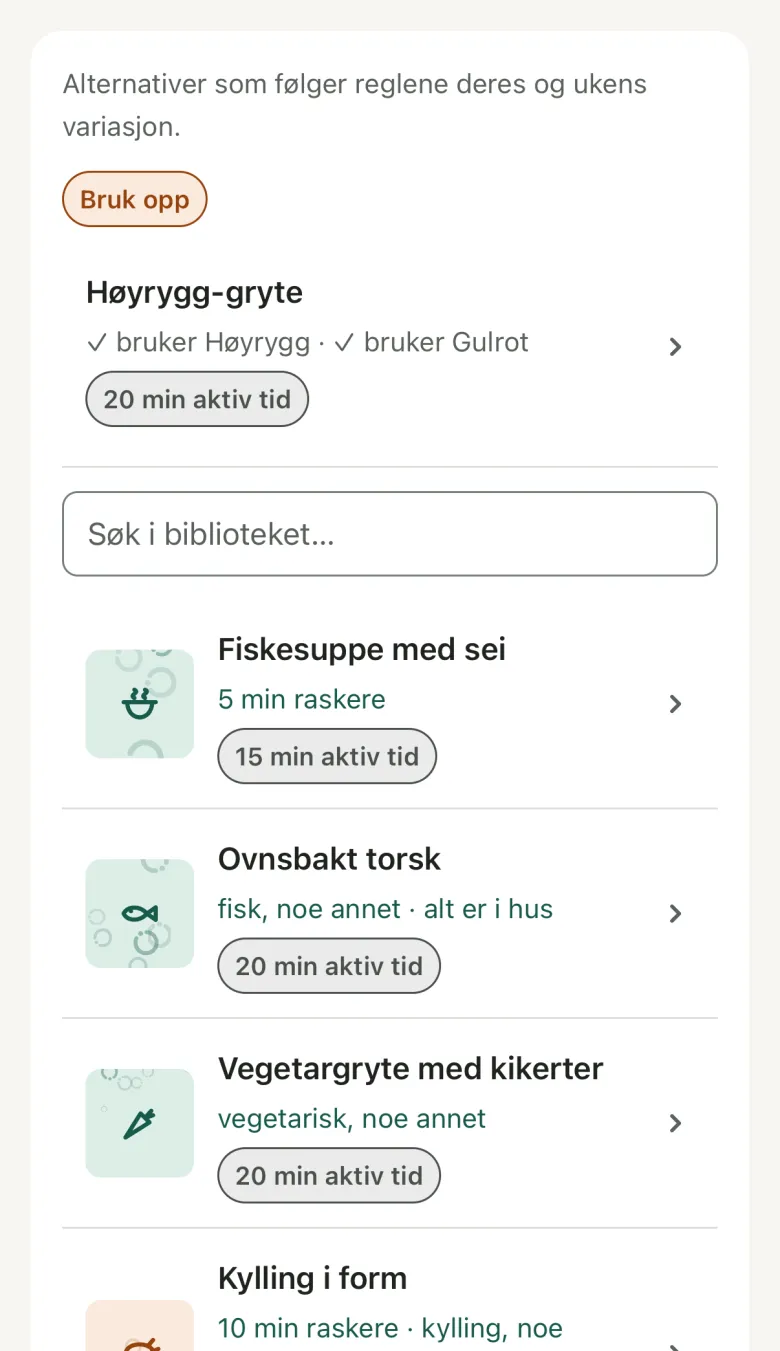 Open Details on a suggestion to see the ingredients, how many of them need buying, and a rough line per portion with calories, protein, and “five a day”. Rough estimate from the foods Bryti knows.Below the list, you’ll see Or: Eating out and Leftovers. Just tap one, and your day is set.When you choose eating out, it’s added to the date as an event. If you delete the event, the day becomes open again.
 Bryti finds a dish that fits the wish, within your rules and allergies, then shows you a suggestion to accept or reject. If you ask “what are we eating this week?” the week appears in the chat. There, Swap on a day opens the same swap card.
Swap for something else
- Tap Swap for the day. You’ll see the same card no matter if you’re on the Week page or chatting with Bryti about the week.
- Choose one of the alternatives. None of them are already planned for another day this week, and each option explains why it’s a good fit, such as being faster or using ingredients you already have.
- If none of the options work, use the search field above the list. From your cookbook shows recipes you’ve added, and From the starter library shows the ones that come with Bryti.
- You can also tap Suggest more for new meal ideas that fit the day. This uses credits, and the price is shown on the button.
Worth knowingBryti keeps track of the leftovers you note after dinner and can plan a leftovers night. If you want this more often, turn on Prefer leftover dinners in Bryti’s settings. Then, leftovers night will be about every third day, but never on Friday or Saturday.
Use up what’s running out
If you have something in the pantry that should be used soon, Use up appears at the top of Swap, showing dishes that use it. Each dish has a “✓ uses” chip for every item it includes, and the dishes that use the most come first.Sometimes, the suggestion is tonight’s dish with just one ingredient swapped. This is a smaller change than choosing a completely new dinner.Tap Take it to make the change, and Bryti will update your shopping list. The usual alternatives for the day are listed further down.Move, remove, lock
More for this day includes Move to …, which lets you trade places with another day or move to an empty one. Remove the dinner clears the day. Lock means Bryti won’t change the day when planning again, and a locked day has no swap button.After you swap, move, or remove a dinner, Undo appears at the bottom for a short time. Bryti updates the shopping list instead of creating a new one, so anything you’ve already checked off stays checked.Say something about the dish
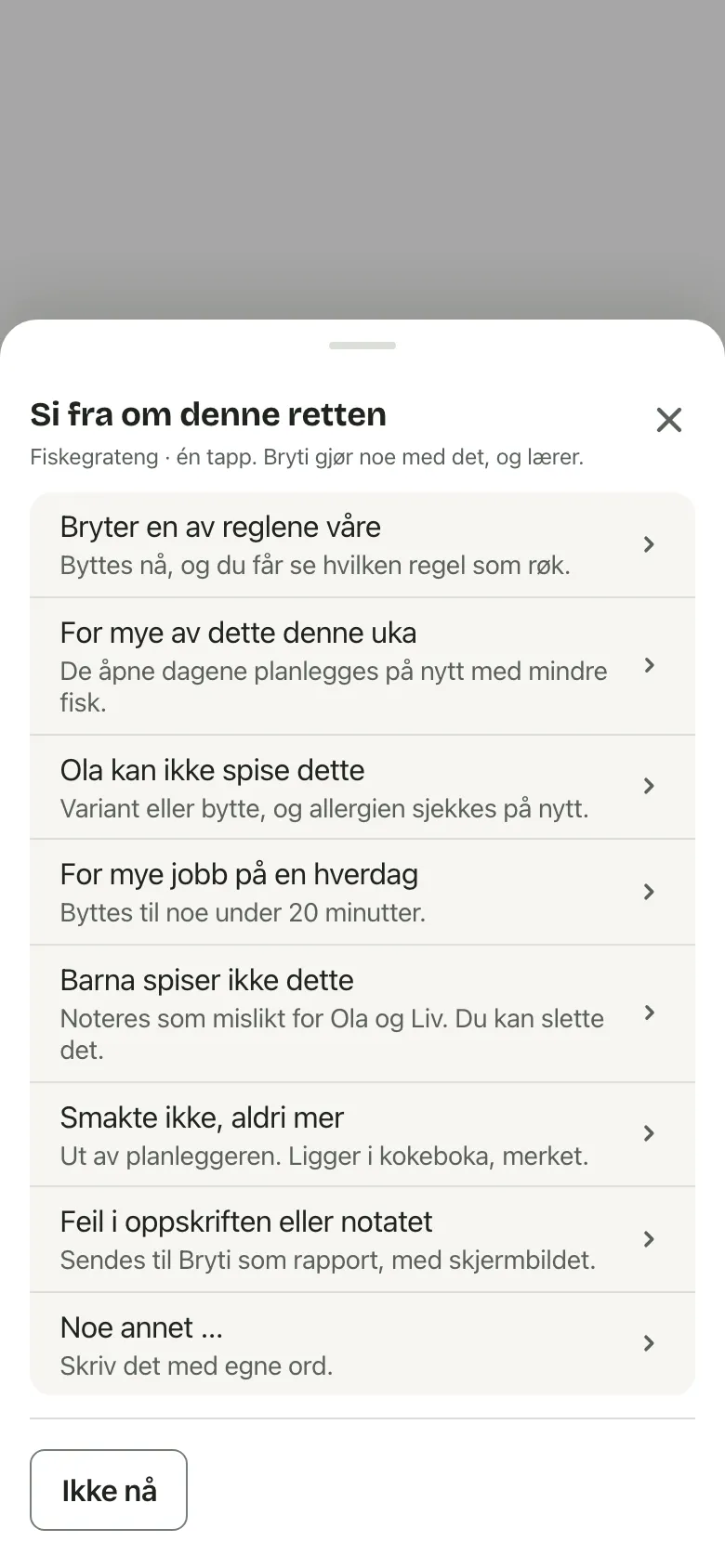
Use Say something about this dish on the card to give feedback. Maybe the dish breaks a rule, the kids won’t eat it, or you never want it again. Each reason explains what Bryti will do, and Bryti acts on it right away.Swap in the chat
Swap Thursday for something with fish
NoteOnly adults can swap meals. Juniors see the plan but not the buttons. If a Junior asks for a swap in the chat, it becomes a card that an adult needs to accept.
Go to Week
Opens in the app