Shop
How to use the shopping list
Everyone in your household shares the same shopping list, which is based on the week’s menu. The prices are taken from your own receipts first.The Shopping page always displays the next week you haven’t shopped for yet. Once you’ve planned dinners for that week, the list includes the ingredients for the planned portions, except for what the pantry says you already have.You never have to rewrite your list. It updates on its own if you swap a dinner or run out of something in the pantry. If anything has changed since you last checked, you’ll see a message at the top: The list changed since you last looked.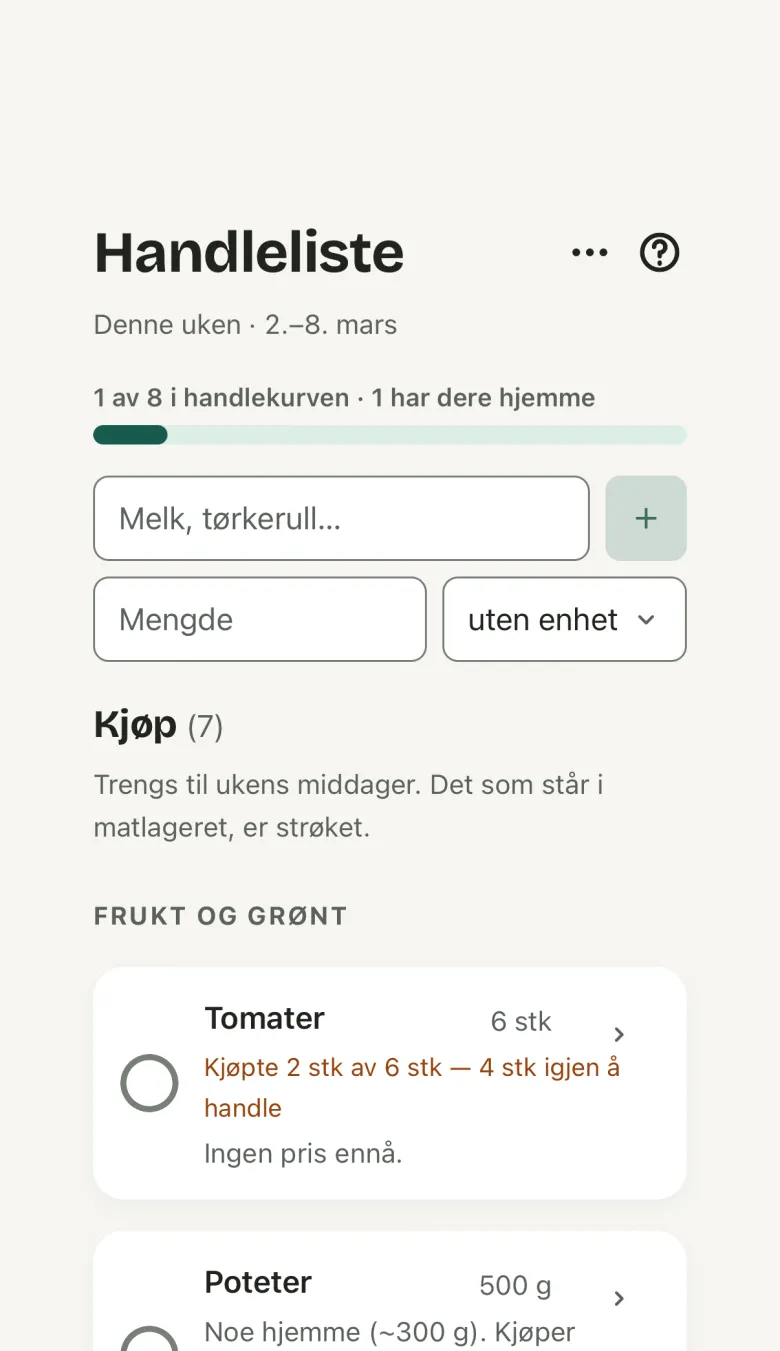
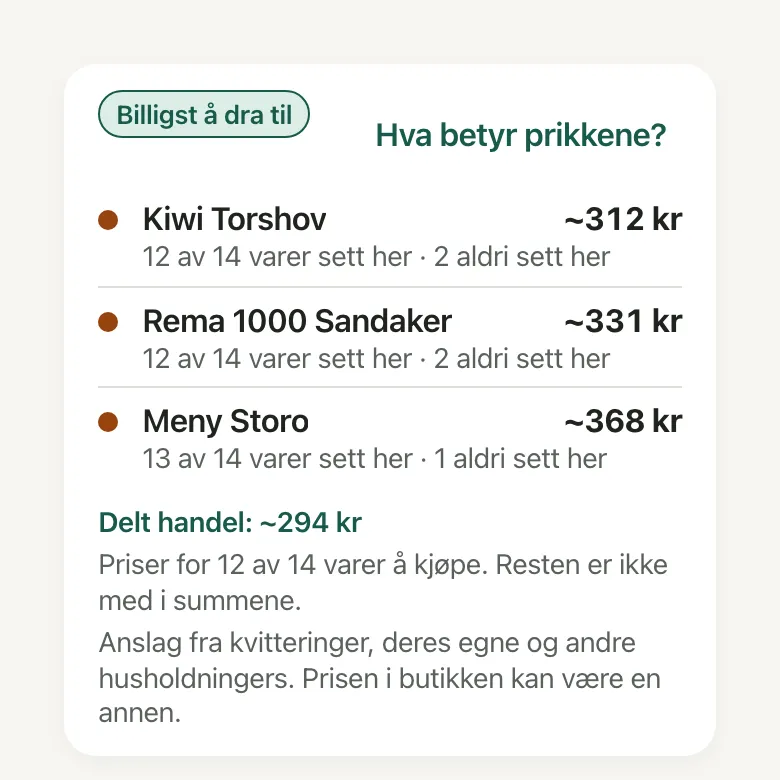 Each store has a dot showing how many items Bryti has actually seen there. What do the dots mean? explains the three colours. The product a price refers to is shown on the card, and if you switch to another product, Bryti can remember your choice.Even before you have your own receipt, a line can still show a price. This is based on what others have paid for the same item at the same chain. It’s always marked with “approx. 42 kr” and estimate. On the basket card, Cheapest single store will then say “Probably cheapest”.Once you’ve added your first receipt, your own prices are used. An estimate never colours a store’s dot, since nobody has actually shopped there.You only see estimates while you’re sharing prices from your own receipts. If sharing is turned off, any item without a price from your receipts will say “No price yet”.
Reading the list
Buy lists items in the same order as you find them in the store, starting with fruit and vegetables and ending with dry goods. Check at home shows what Bryti thinks you might have at home but isn’t certain about.If you already have enough of an item in your pantry, it appears crossed out in Buy, and the amount you have at home is shown under its name. The ring on a crossed-out line is Out. If you tap it, the item becomes a regular line to buy, showing the full amount.If you realize you do have the item, tap the ring again within a few seconds. Crossed-out lines aren’t counted, and the progress bar shows how many items you already have at home.Each line explains why it’s on the list, such as which dinners it’s for or if it was “used up recently.” If a line only relates to dinners you’ve already cooked, it moves down to From earlier this week. This section stays closed until you open it.These lines aren’t counted, and Done shopping doesn’t mark them as bought. They will carry over to next week’s list.Check at home
Check at home contains the items Bryti isn’t sure about, and none of these count as things you need to buy. They might be items the pantry saw some time ago, or staples like rice or butter that haven’t been mentioned yet. Staples are marked Staple, not seen yet.Each line has Have it, which crosses it out and tells the pantry you have that item. There’s also Out, which moves the item to Buy. You can undo either action for a few seconds.NoteA Junior sees the lines but not the buttons. The buttons change the household’s pantry, and that’s a job for an adult.
In the store
- Tap the ring to check off an item as you put it in your cart. Undo stays available for five seconds.
- If you buy a different amount, tap the line and save the correct amount under Amount, using grams, pieces, or packs.
- Bryti converts using the weight you entered, or the one from Matvaretabellen if you didn’t provide it. If that isn’t possible, the line stays open with the amount you bought.
- If you need something that isn’t for the planned dinners, Add something suggests items from your own list and pantry. It also understands entries like “1 l milk” typed all at once. Tap Add to the list to add the item.
- When you’re at the checkout, tap Done shopping. Bryti moves the items you checked off into the pantry, and the list moves on to the next week.
Worth knowingAfter shopping, Bryti asks for your receipt. Import receipt reads it to learn your stores’ prices and what you actually bought. Before saving anything, Bryti only shows you the lines that are worth checking.
Prices and stores
Prices are taken from your receipts first. If there’s no price from you, Bryti uses an anonymous average from other households over the past 60 days. Each price shows how old it is.If neither source has a price, Bryti uses the store’s listed price. If that’s also missing, Bryti estimates a price based on what others paid at the same chain and marks it as an estimate.With Choose stores, you can select the stores you shop at. The list estimates the basket’s cost at each store, so you can compare the cost of one trip versus splitting it up.What the products you buy are
Below the basket card, you’ll find a quiet card called What the products you buy are. It checks your own receipts from the last 30 days and looks up the products in Open Food Facts. It tells you how many of the products were heavily processed, for example: “28 of the 41 products Bryti recognised, out of 60, were heavily processed.”This share only includes the products Bryti recognised. Because a receipt line has no barcode, the summary also tells you the total number of products.Below that, you’ll see Bryti’s own description and the source, such as “Heavily processed · NOVA 4.” This describes the products, not your household.The card doesn’t make any recommendations and only uses your own receipts. If you don’t have receipts from that period, the card won’t appear.Under the source line, the card lists up to five products under Some of the products Bryti recognised, as Bryti recognised them: “Grandiosa Original · Stabburet · 350 g.” Under each name, you’ll see how processed it is, and High sugar or High salt if it’s over the limit.These are the five most recent products Bryti recognised, whatever they may be. The names are shown so you can see what Bryti actually read and notice if anything is incorrect.The card doesn’t rank or colour any items, and What is NOVA? explains the steps. If Bryti didn’t recognise any products, there won’t be a list.Follows your preferences
If you’ve added allergies, intolerances, a diet, or anything you avoid under People in Settings, the list chooses the cheapest product that matches your needs. Allergies are always taken into account, even for products you picked yourself.A product that matches your preferences gets a grey pill labeled Follows your preferences. Behind the arrow, you’ll see the extra cost, like “12 kr more than the cheapest.” If Open Food Facts doesn’t know what a product contains, there’s no pill, and behind the arrow it says Bryti does not know what is in this one.If nothing on the line matches your preferences, the cheapest product is still shown. There will be a note explaining this and a reminder to check the product yourself.High sugar and high salt
Behind the arrow, a line might say “High sugar · 54 g per 100 g” or “High salt · 1.8 g per 100 g.” This appears when Open Food Facts lists more than 22.5 g of sugar or more than 1.5 g of salt per 100 g.These limits are based on the UK front-of-pack label, which uses a single figure per 100 g for all foods. The number is always shown next to the word, so you can decide for yourself what Bryti means by “high.”You’ll see the same word when you scan a barcode into the pantry, just below the processing level. If the product is under the limit, or Open Food Facts doesn’t have the number, nothing is shown.Bryti never praises any product. The word is just for your information and never removes a product from the list.NoteThe list shows you what has changed since you last checked, such as new items added after your last shopping trip. With Share the list, you can send the list as plain text to someone who doesn’t have an account.
Go to Shopping
Opens in the appGo to Stores
Opens in the app